

How AI CCTV monitoring works with Woodcock AI
Woodcock AI connects to the cameras and recorder you already have over RTSP or ONVIF, runs AI detection on an on-site edge server or in the Woodcock AI Cloud, and sends an alert with the video clip by app, email or SMS within seconds. Alerts to a monitoring centre (ARC) and phone-call alerts are available as optional add-ons. On the edge server, relay outputs can also trigger your fire panel or sirens.
From camera to alert, step by step
Tap each part of the system. Switch between edge and cloud to see what changes.
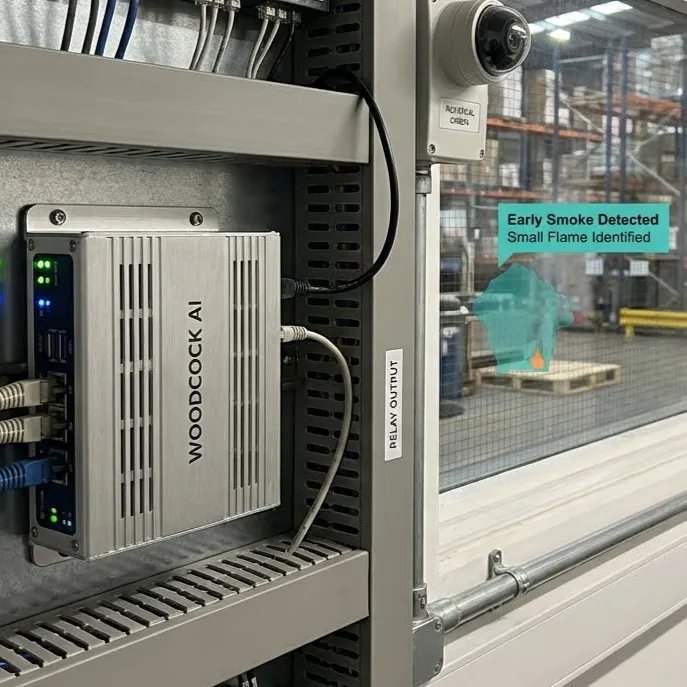
On-site edge server or the Woodcock AI Cloud

Edge server
- Processes video on your local network
- Detection and relay outputs keep working offline; app and email alerts need a connection, which a 4G router can provide
- Footage stays on site, with no high-bandwidth streaming off site
- Flags faint smoke or small flames in under four seconds
- Relay outputs for fire panels, sirens and other safety systems
See what the edge server detects on smoke and fire detection cameras.
Woodcock AI Cloud
- No NVR required on site
- Central monitoring across sites
- Remote management
- 60-day cloud recording as standard, longer on request
- Needs an internet connection
How to set up AI monitoring on existing CCTV
- 1
Free site assessment
We review your cameras, recorder and network, and the risks on your site, and recommend which cameras should watch for what.
- 2
Connect over RTSP
Enter each camera or recorder login on the edge server or the Woodcock AI Cloud. Video streams over RTSP or ONVIF. Our technical team helps for free, including remote setup.
- 3
Choose modules
Pick the detection each camera runs, such as smoke and fire on stockpiles, intrusion on the perimeter or PPE in the yard.
- 4
Set zones and schedules
Draw detection zones on each camera view, set when each camera watches, and choose who receives which alerts.
- 5
Go live
Alerts start arriving with the video clip. During the 30-day trial you review real events, with no obligation to continue.
RTSP setup for AI on Hikvision cameras and NVRs
Hikvision kit connects like any other ONVIF or RTSP device. The usual checklist before connecting a camera or recorder:
- Find the device on the networkNote the IP address of each camera, or of the NVR if you are connecting through the recorder.
- Check RTSP and ONVIF are enabledIn the device's network settings, make sure RTSP is on. On Hikvision, ONVIF is under Configuration > Network > Advanced Settings > Integration Protocol: enable it and add an ONVIF user.
- Use a dedicated loginCreate a separate user for the AI rather than sharing the admin account, so access can be managed on its own.
- Know the stream addressesHikvision devices use RTSP port 554 by default. The main stream is usually
rtsp://<ip>:554/Streaming/Channels/101and the sub-streamrtsp://<ip>:554/Streaming/Channels/102; on an NVR, channel 2 is 201 and 202, and so on. - Main or sub-streamThe sub-stream uses less bandwidth and processing, which suits most detection. Use the main stream where you need detail at distance, such as smoke at the far end of a yard. Woodcock AI accepts H.264, H.264+ and H.265 streams from 360p to 8K.
- Never expose RTSP to the internetKeep RTSP on your local network. Do not port-forward 554 on the router; the edge server connects locally.
- Enter the loginAdd the camera or recorder on the edge server or the Woodcock AI Cloud using its address and login. Our technical team helps for free, including remote setup.
- Closed systemsIf a system does not offer ONVIF or RTSP, we will say so on the assessment and advise on a compatible upgrade.
Selling AI to your customers? See the installer and reseller programme.
How it works: common questions
Hardware, bandwidth, data and alerts, answered plainly.
What hardware sits on site?
How much bandwidth does it need?
Where is footage processed and stored?
Is it GDPR compliant?
How are alerts delivered?
Keep exploring
Guides, the app and the detection that runs on this system.